Appearance
Authentication
To authorise the ServiceNow SMS integration we need a set of basic auth credentials (api key and api secret) from the Hub. To get these navigate to 'Settings' → 'API Settings' in the hub. On this page create a new key in the basic authentication section.
The authentication process works consistently across all supported vendors including Sinch Engage, MessageMedia, OneNZ MultiTXT, Spark eTXT, 2Degrees GroupText, TPG Telecom Messaging Hub, and Marquire telecom notify now. ServiceNow messaging features use the same authentication method for all vendors, ensuring easy configuration and feature parity. 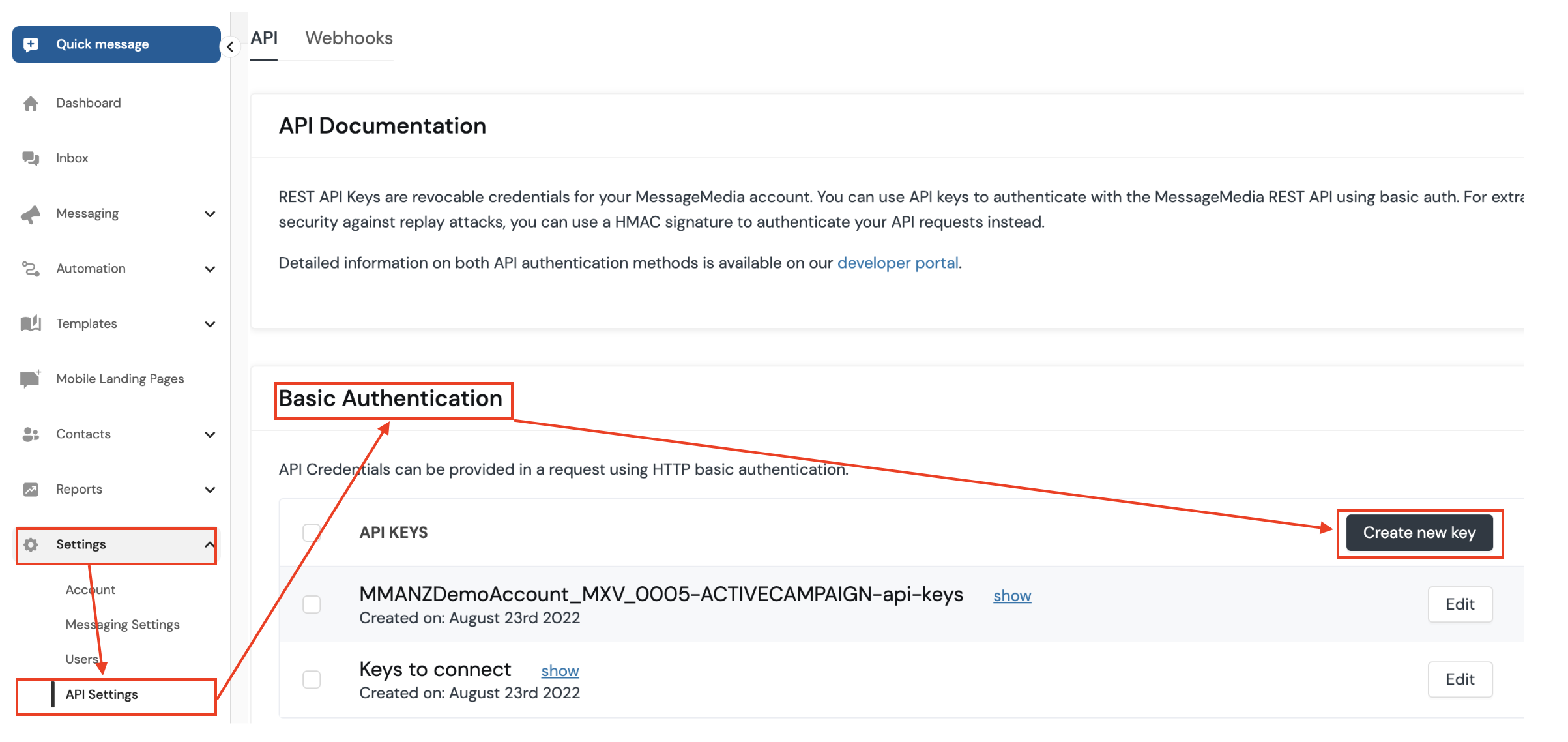
Enter an api key name (e.g. ServiceNow) and click to ‘Create key’. 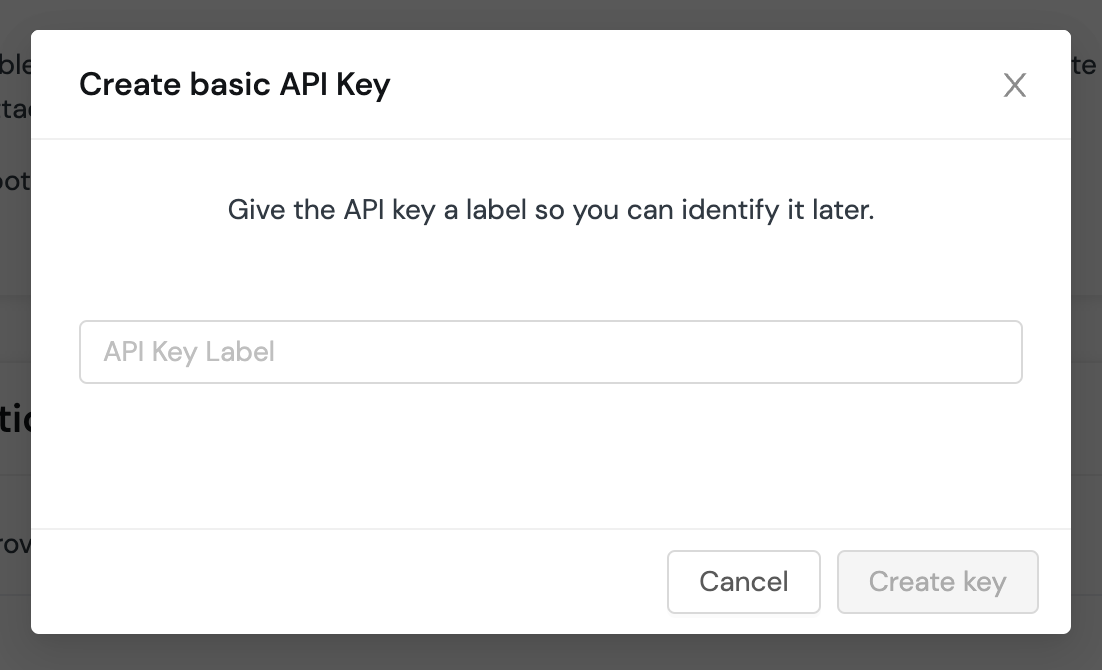
Now with our api_key and api_secret in hand we can configure ServiceNow to use these credentials.
Credential Rotation
Why Rotate Credentials?
Regularly rotating your API key and secret is a recommended security practice. This reduces the risk of unauthorized access if credentials are ever exposed. We recommend rotating credentials at least every 90 days, or immediately if you suspect they may have been compromised.
How to Rotate Credentials
- Generate New Credentials:
- Go to ‘Settings’ → ‘API Settings’ in the Hub.
- Create a new key in the basic authentication section. Do not delete the old key yet.
- Update ServiceNow Configuration:
- Replace the existing API key and secret in your ServiceNow integration with the new values.
- Use the encoding tool below to generate the new encoded token for outbound SMS.
- Test the Integration:
- Send a test message to confirm the new credentials are working.
- Remove Old Credentials:
- Once you have confirmed the new credentials are working, delete the old API key and secret from the Hub.
Tip: Always keep your credentials secure and never share them in unsecured channels.
Outbound SMS
The key and secret need to be encoded to a token. You can use the tool below to encode the key and secret. This encoded value will be need in the spoke action later.
Receiving Inbound SMS new in v1.1
In ServiceNow search the application menu for Messenger and you will see two menu items as below, select Environment Registration.
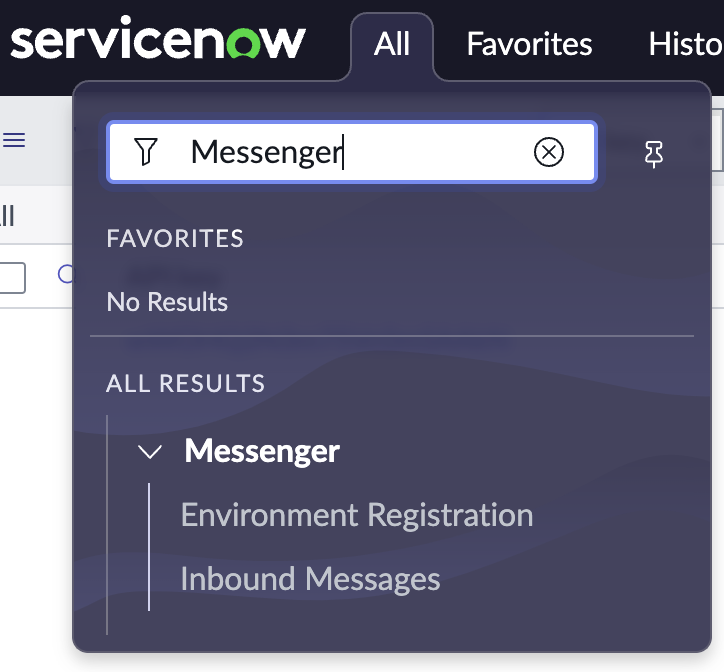
Create a new record entering the API key and secret generated for the integration and save this. This will configure your account and environment for receiving inbound messages. This inbound messaging configuration works seamlessly across all supported vendors (Sinch Engage, MessageMedia, OneNZ MultiTXT, Spark eTXT, 2Degrees GroupText, TPG Telecom Messaging Hub, and Marquire telecom notify now), providing equal ServiceNow messaging features with feature parity for all vendors.
Related Topics
- Installation Guide - Install the ServiceNow SMS connector workflow spoke
- Usage Guide - Learn how to use the SMS connector in workflows and scripts